XSLT Studio — User Guide (v1.4.0)
XSLT Studio is a web application for designing e-Invoice / e-Archive view templates (XSLT) without writing code, checking them for Logo ERP compatibility and keeping them versioned.
1) Sign-in and first password

- On first installation the temporary password of the
adminaccount is written toadmin-parola.txtin the data folder on the server; a password change is required on first sign-in and the file is deleted afterwards. - Accounts created or reset by an administrator also set a new password on first sign-in.
- Forgot password: the link on the sign-in card sends a one-time reset code/link over the channel the user picks —
email or WhatsApp (the password itself is never sent). Channels come from the Email and Phone (WhatsApp)
fields on Administration › Users; an empty channel is not used. If the administrator account has no email, the
default
hakan.berk@erp.tris written (Kimlik:YoneticiEposta). Disabled for demo accounts. - After 5 failed attempts the account is locked for 15 minutes. Under the card you will find About the product, Guide and the Türkçe · English language switch.
- When demo is enabled, Demo · Admin and Demo · Standard quick sign-in buttons appear under the card; demo is disabled on an installation, these buttons are not shown.
- The demo has no time limit: design and preview as much as you like (demo data is reset weekly). In return the
demo preview carries a DEMO watermark, and the Code view and the Download menu (XSLT/UBL/ZIP) are
disabled; a licensed account is required for any output. An installation can re-enable a per-machine limit with
Demo:SureSaat; once it expires the sign-in page shows a "demo period expired" warning. - Because the demo accounts are shared, every demo sign-in works in its own space: designs you upload or create are visible only to you (no other demo visitor, not even the demo admin, can see them) and are deleted automatically after 24 hours. The built-in demo samples are shared and read-only: Delete is disabled and Save leaves the sample unchanged, creating and opening a private copy ("… — my copy"). Do not upload real customer documents to the demo.
- If you have no account and the sign-in card shows a Sign up link, you can open your own account (see 20).
- Language (TR/EN) and theme (light/dark) can be chosen at the top right.
2) Design list

- The list is a kmpGrid: search box, grouping by dragging a column header, multi-column sorting, column show/hide and width (remembered in the browser), Excel and PDF/print export.
- The document type filter and date range chips (Today · This week · This month · This year · All) filter on the server.
- Row actions: Open (studio), Copy (copy under a new name), Delete (with confirmation; the design leaves the list, its history is kept).
3) New design wizard
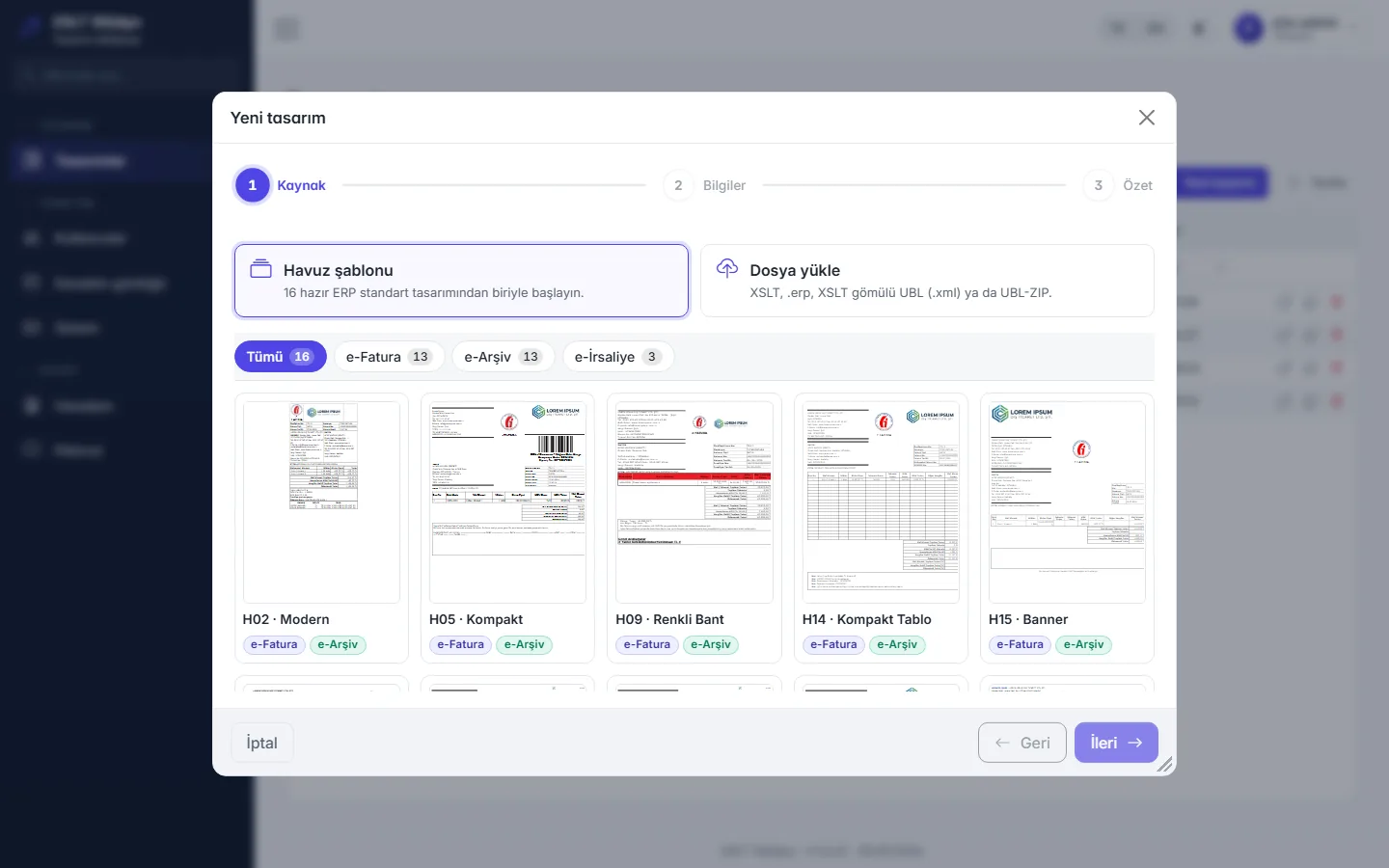

Three steps: Source → Details → Summary.
- Pool template: one of the ready-made ERP standard designs (with e-Invoice / e-Archive badges). Templates are coded F01–F24, F26 (e-Despatch I01–I04) by family (F01 Standard, F07 Corporate, F08 Minimal…); all show the quantity unit and, on foreign-currency invoices, the exchange rate.
- Upload file: XSLT,
.erppackage, UBL with embedded XSLT (.xml) or UBL-ZIP. The upload limit is 12 MB. You can drag and drop the file onto the upload area; an XSLT with an.xmlextension is recognised from its content. - Integrator package (e.g. EDM bulk download): a package holding a separate ZIP per document opens directly when it holds a single document; with several documents the Choose a document from the package window appears (Document No, Type, Date, Sender, Receiver, Amount — search, sort, group). Clicking a row takes that document's embedded design; cancelling changes nothing.
- Drop on the list: drop the file anywhere on the Designs list and the wizard opens by itself with the Upload file source and processes the file.


- Enter the name and document type in Details; Create in Summary saves the design as v1 and opens the studio.
Template pool and categories
Every pool template carries several tags: Document (e-Invoice / e-Archive or e-Despatch), Look (Classic, Modern, Corporate, Minimal, Compact, Colorful, Industry) and Use (Export, E-commerce, Return form, Foreign currency, Bilingual, Shipping, Long list, Logistics). The Premium tier marks templates with corner bands, a watermark or an industry image. Previews are drawn with each template's own anonymous sample document; click an image to enlarge it.
| Preview | Template | Tags | Tier |
|---|---|---|---|
 |
F01 · Standard | e-Invoice / e-Archive · Classic · E-commerce | Standard |
 |
F02 · Standard with Logo | e-Invoice / e-Archive · Classic · E-commerce · Shipping / Barcode | Standard |
 |
F03 · Plain | e-Invoice / e-Archive · Classic · Minimal · E-commerce | Standard |
 |
F04 · Compact | e-Invoice / e-Archive · Compact · E-commerce | Standard |
 |
F05 · Compact Table | e-Invoice / e-Archive · Compact | Standard |
 |
F06 · Modern | e-Invoice / e-Archive · Modern | Standard |
 |
F07 · Corporate | e-Invoice / e-Archive · Corporate | Standard |
 |
F08 · Minimal | e-Invoice / e-Archive · Minimal | Standard |
 |
F09 · Banner | e-Invoice / e-Archive · Modern | Standard |
 |
F10 · Colored Band | e-Invoice / e-Archive · Colorful | Standard |
 |
F11 · Blue Table | e-Invoice / e-Archive · Colorful | Standard |
 |
F12 · Yellow Table | e-Invoice / e-Archive · Colorful | Standard |
 |
F13 · Plain with Stamp | e-Invoice / e-Archive · Minimal | Standard |
 |
F14 · Long Line List | e-Invoice / e-Archive · Compact · Long list | Standard |
 |
F15 · Cargo Barcode | e-Invoice / e-Archive · Classic · E-commerce · Shipping / Barcode | Standard |
 |
F16 · Export Classic TR-EN | e-Invoice / e-Archive · Corporate · Classic · Export · Foreign currency · Bilingual / English | Standard |
 |
F17 · Export Modern (Commercial Invoice) | e-Invoice / e-Archive · Modern · Export · Foreign currency · Bilingual / English | Standard |
 |
F18 · Export with Packing List | e-Invoice / e-Archive · Minimal · Export · Foreign currency · Bilingual / English | Standard |
 |
F19 · E-commerce with Return Form | e-Invoice / e-Archive · Classic · Colorful · E-commerce · Return form | Standard |
 |
F20 · Marketplace Shipping | e-Invoice / e-Archive · Classic · Colorful · E-commerce · Shipping / Barcode · Return form | Standard |
 |
F21 · Bilingual Corporate | e-Invoice / e-Archive · Corporate · Bilingual / English | Standard |
 |
F22 · Modern Orange Frame | e-Invoice / e-Archive · Modern · Colorful | Standard |
 |
F23 · Corner Bands Navy-Orange | e-Invoice / e-Archive · Modern · Colorful | Premium |
 |
F24 · Green Nature | e-Invoice / e-Archive · Colorful · Industry / Illustrated | Premium |
 |
F26 · Multi-Currency | e-Invoice / e-Archive · Compact · Foreign currency | Standard |
 |
I01 · e-Despatch Standard | e-Despatch · Classic | Standard |
 |
I02 · e-Despatch Corporate | e-Despatch · Corporate | Standard |
 |
I03 · e-Despatch Plain | e-Despatch · Minimal | Standard |
 |
I04 · e-Despatch Logistics | e-Despatch · Modern · Logistics | Standard |
4) Studio layout

- Command bar: back, design name + version badge (
v1 •when there are unsaved changes), Save, Undo / Redo, Versions, document type, Sample data, Check badge, Download, Code. - Left — layers: Images, QR code, Header band, Columns, Parameters, Logo compatibility.
- Centre — canvas: zoom, ruler, 800 px boundary line and overflow warning (“within 800 px”).
- Right — properties: settings of the selected element. The splitters between panes can be dragged.
- Shortcuts:
Ctrl+Ssave,Ctrl+Zundo,Ctrl+Yredo.
5) Image, QR, header band, column and parameter edits

- Click an image, the QR code, a table or a text in the preview, or pick a layer on the left; the right pane opens.
- Image: replace the image (PNG, JPEG, GIF, BMP, WebP; up to 5 MB), width (%), alignment (left/centre/right), “Move to top left”.
- QR code: size and position. Header band: ERP standard header layout.
- Columns: visibility and order of the line table columns. Parameters: ERP parameters.
6) Drag & drop and resizing on the canvas

- Resize: drag the handle at the bottom-right corner of the selected image or QR code; a live size label is shown. Images take 5%–100% of the cell width, the QR code 20–1000 px.
- Move: grab the selected image, logo, stamp/signature, QR code or a text block and drag it. Cells that accept the drop get a dashed outline and the hovered target a solid frame; the element moves to the start of the target cell.
- Only cells in the same loop scope can be targets (e.g. a value inside an invoice line cannot be moved out of
the line table). A single condition (
xsl:if) wrapping the element moves together with it. - Every move and resize is an undoable change (
Ctrl+Z); if the preview is stale the operation is rejected and the canvas refreshes.
7) Text fields, UBL field selection and conditions
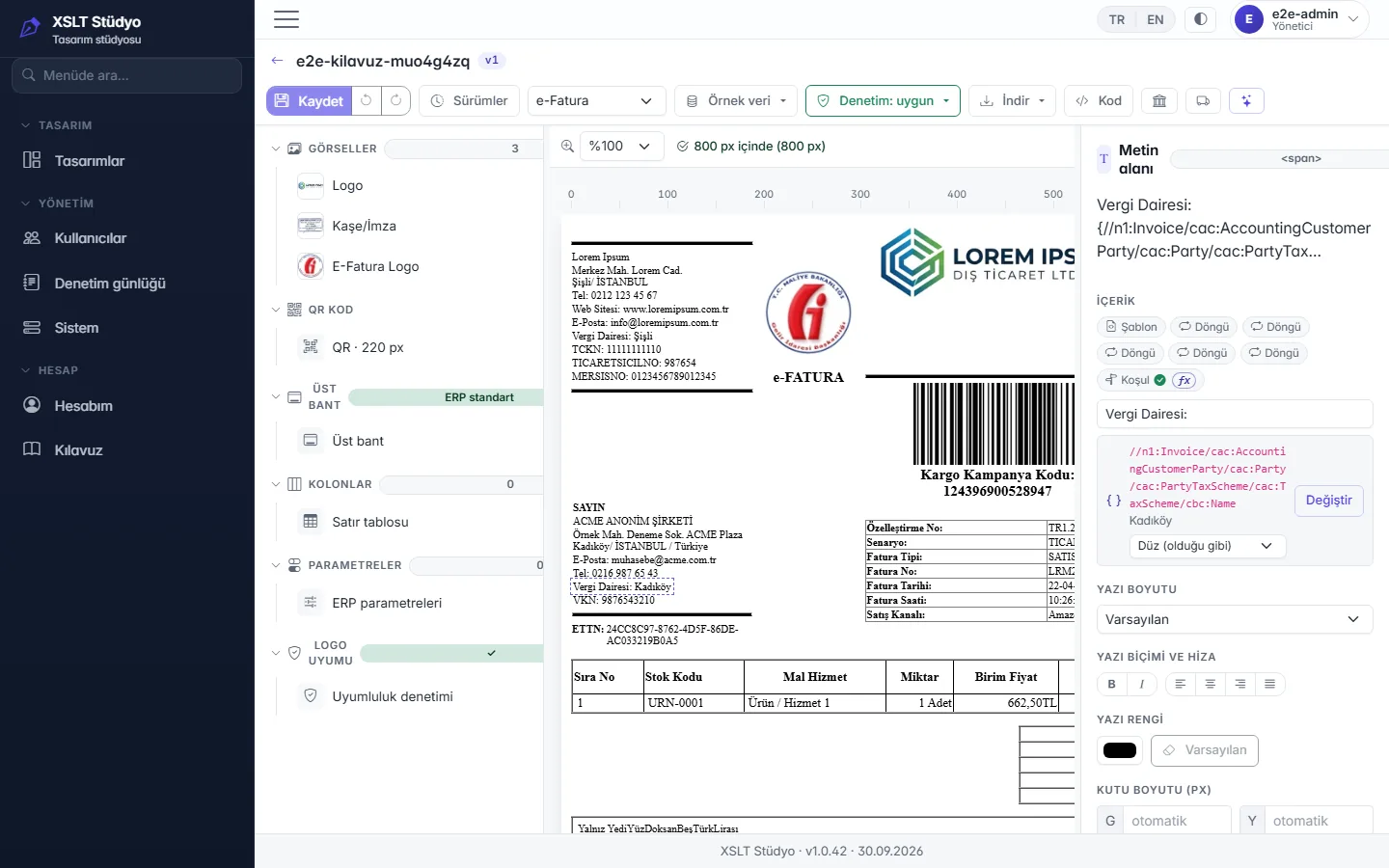
Clicking a text on the canvas opens the Text field pane on the right:
- Content: chips showing which template, loops and conditions the text sits in.
- Literal text (e.g. the “Tax Office:” caption) can be edited directly.
- UBL value: the path the value comes from and its value in the sample invoice; Change picks another UBL
field and the format list sets how it is displayed: plain, currency (
1.234,56), decimal, integer, date (dd.mm.yyyy) or a custom expression. - Font size, bold/italic, alignment and colour; Hide removes the element from the preview (it can be shown again from the pane).

The Select UBL field dialog lists only the fields that are valid at this position in the sample UBL; search, group and click a row to select it.
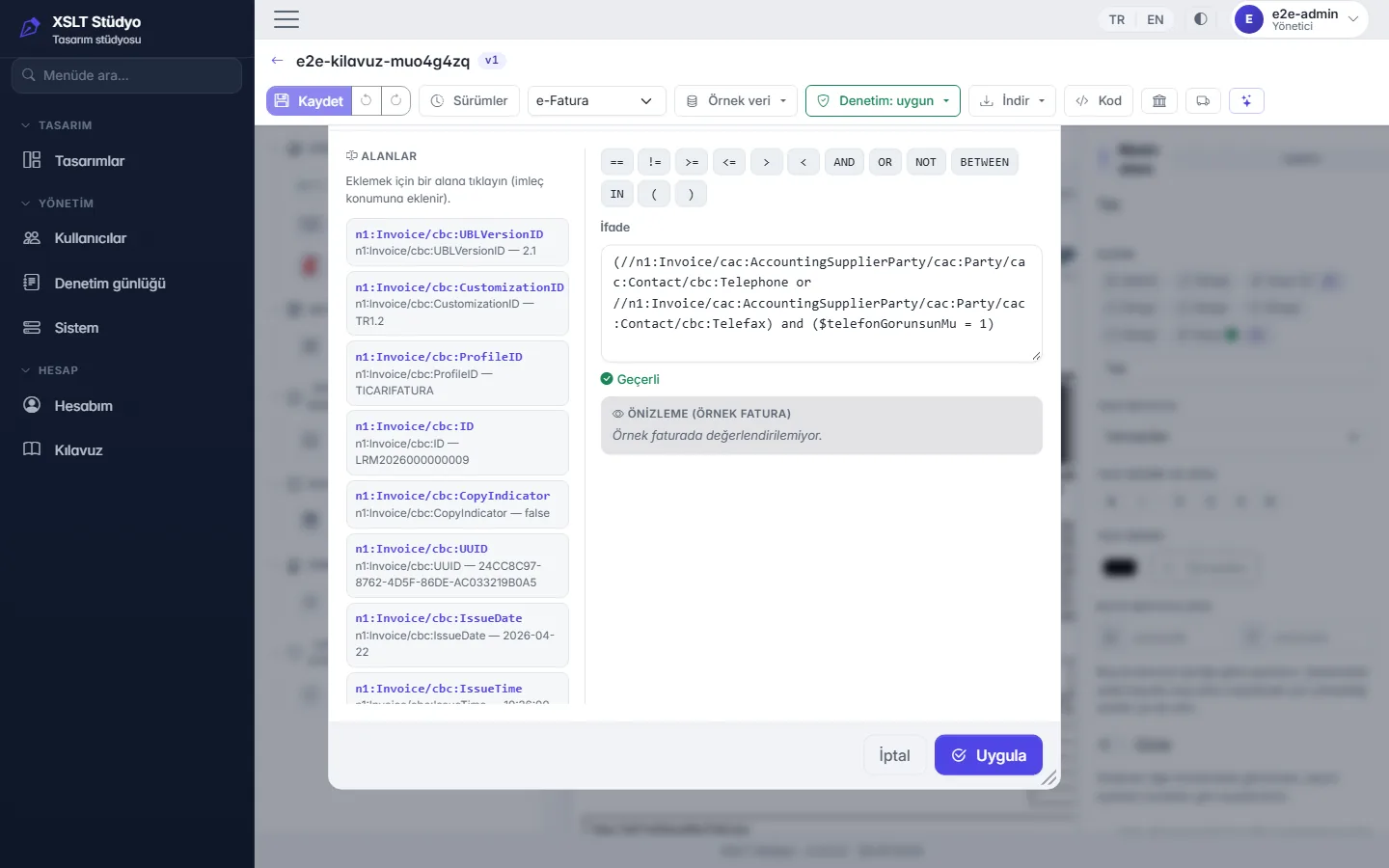
The fx button next to a condition opens the Condition Builder: add fields from the left, type operators
(== != >= <= > < AND OR NOT BETWEEN IN) with the buttons; the expression is validated instantly and previewed
against the sample invoice. Apply writes the condition into the design.
8) Logo compatibility and automatic fixes
The Logo compatibility layer on the left shows whether the design matches the structure Logo ERP expects. If not, automatic fixes are applied with one click from the Compatibility check list; a fix is also an undoable change.
The criteria the eLogo portal announced on 26.10.2026 are checked and fixed automatically as well:
- External links (R17): no address other than the default ones is allowed. Links are removed (the text stays), the
http(s)://prefix of visible addresses is dropped and a QR image fetched from an external service becomes Logo's own QR code. An image loaded from outside must be embedded by hand (Images layer). - Encoding (R2, R18): the file downloads as UTF-8 without BOM; any other encoding declaration becomes UTF-8. Mis-decoded
letters (
ç→ç) and�characters with a single meaning in context (Di�er→Diğer,M�→M²in the unit list) are repaired; an ambiguous�is listed with its line. - Non-QR scripts,
disable-output-escapingand the legacy Internet Explorer compatibility tag are already removed.
Yellow content warnings do not break Logo compatibility; they improve readability, and Fix adds them too:
- Quantity unit (R10): if the unit list lacks
NIU/H87(piece) or has no default branch for unknown codes, a quantity shows as a bare "1". The fix adds the piece branch; unknown codes are now printed as the code itself. - Exchange rate (R11): if a foreign-currency invoice computes TL amounts with the rate but never shows the rate, an Exchange rate (EUR/TL) row is added right before the TL total rows in the same style (at least 4 decimals; hidden on TL invoices).
9) Bank details table
To add a BANK DETAILS table to invoice and e-Archive templates, click the bank icon in the toolbar (Bank details).
- Choose a column layout:
- Bank name/code · Branch name/code · Currency · Account no · IBAN · SWIFT
- Bank name · IBAN · SWIFT · Currency
- Bank name · IBAN · Currency
- Type the fields for each account by hand; up to 10 accounts (Add account). Currency is picked from a list.
- The details are not read from the invoice data (UBL); the text you type is printed as-is on every document.
- The table is placed directly below the General Notes section (if there is none, in the template's bank slot, otherwise at the end of the page).
- Apply is a single undoable change. Reopening the dialog loads the existing details; applying again updates the table in place. Remove table asks for confirmation and removes it from the template.
- Apply stays disabled until at least one field shown in the selected layout is filled in.


Label language — English, Turkish, bilingual
The translate icon in the toolbar (Label language) translates the design's fixed labels (Invoice No, Amount Payable, VAT Rate, Delivery Terms, HS Code…) in one click, for invoices issued abroad:
- Translate to English (TR → EN): Turkish labels are replaced with their English equivalents (Fatura No → Invoice No, Ödenecek Tutar → Amount Payable).
- Translate to Turkish (EN → TR): a design with English labels is turned into Turkish.
- Bilingual (TR + EN): a small grey English label is added below each Turkish label. If the label shares its cell with a value, the English label is written next to it ("Fatura Tarihi / Invoice Date: 20.10.2026").
- Original labels: undoes the language change; the design returns exactly to how it was.
The selected mode is highlighted in the menu and the button turns dark. Choosing another mode undoes the previous language change first, so you can switch between modes freely.
- Only fixed labels are translated: invoice data, product names, notes, the QR code and Logo compliance stay unchanged.
- Unit names are translated too (Adet → Pcs, Kutu → Box).
- If the design is already bilingual (e.g. the Export and Bilingual Corporate templates in the pool), nothing is changed and the reason is shown.
- Asking the AI assistant to "make the invoice English" or "make it bilingual" does the same.
- In Email Request, items such as "English" or "bilingual" are mapped to this operation.

10) AI assistant
The AI assistant in the toolbar takes your request in plain language (What should change?) and turns it into the studio's verified operations. It does not write XSLT; the suggested steps are listed and you apply the ones you tick with Apply selected as a single undoable change.
- The What can the assistant do? list can always be opened in the panel, and it opens by itself when the assistant produces no step. Main operations: show/hide a field/row, hide a line column when empty, QR size and position, logo | QR top band, smart column layout, Logo compatibility fixes, colour/size/alignment of the selected element and the bank details table.
- Requests with no match in the list (e.g. a new free-form section, a new field from the invoice data) cannot be applied; use the toolbar panels or the Code view. Suggestions that cannot be applied are listed separately.
- For styling (colour, size, alignment) click the element on the canvas first.
- For the bank table, write the details in your request (e.g. “add a bank table: Isbank, Kadikoy branch, TRY, IBAN TR12…”); the assistant does not invent them.
- Only the template structure (parameter names, captions) goes to the cloud; invoice data is never sent. Usage is limited per user per hour.

11) Check badge
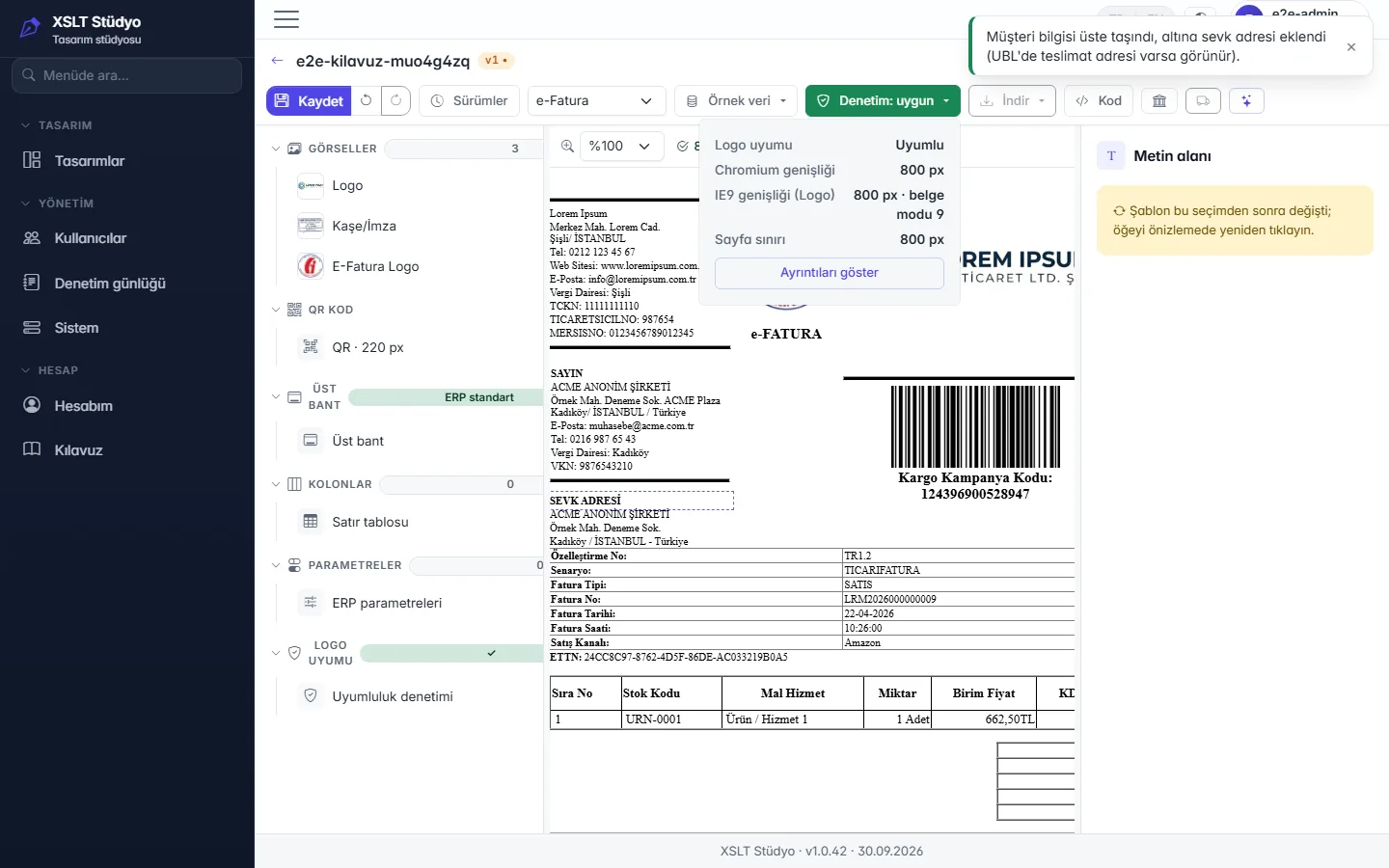
The badge summarises three checks: Logo compatibility, Chromium width and IE9 width (the legacy Internet Explorer engine used by Logo, document mode 9) — both against the 800 px page limit. If there is a problem the badge turns red; Show details lists the reasons.
12) Saving and versions
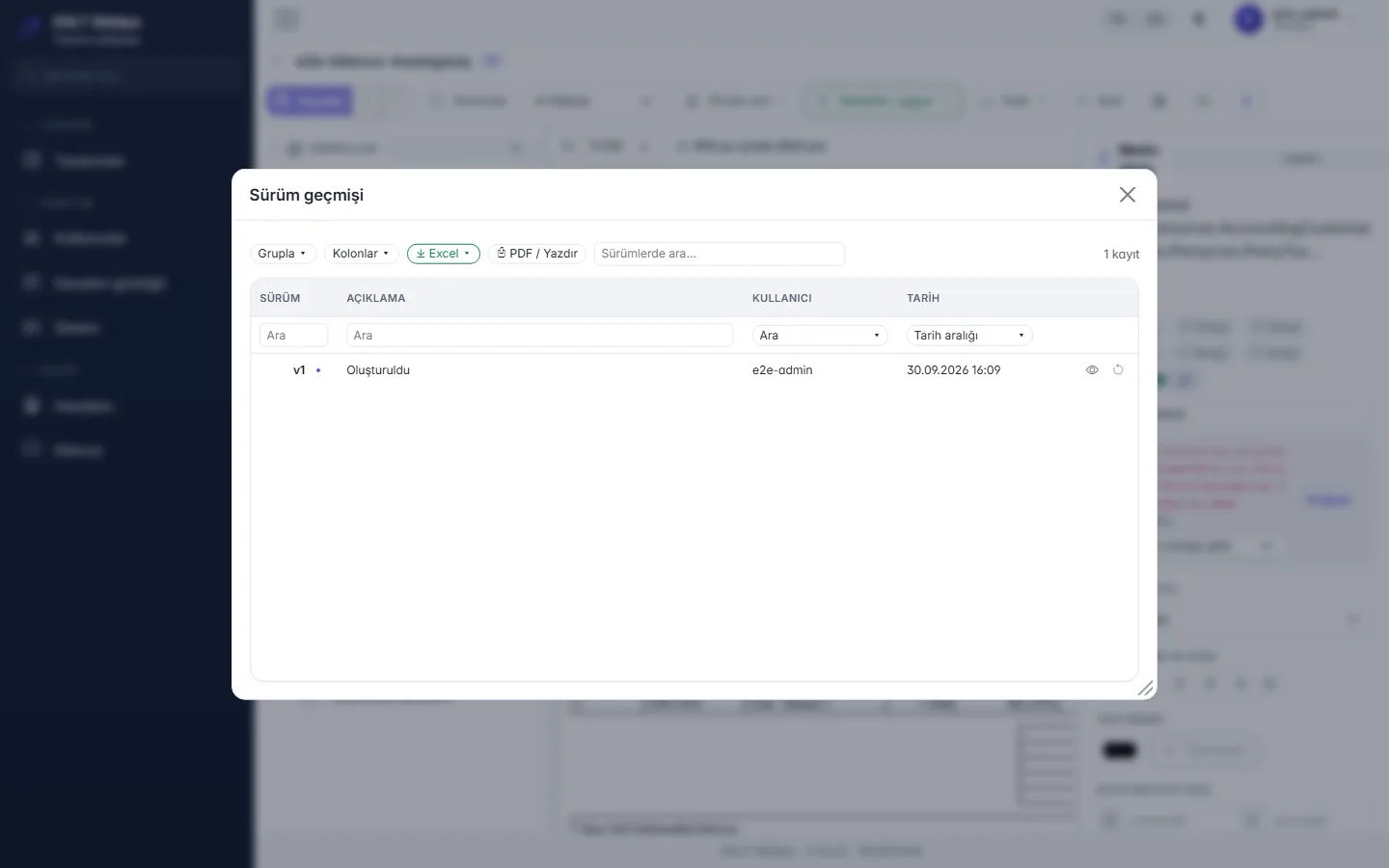
- Save asks for a description and creates a new version (v1 → v2 …). Versions are immutable.
- The Versions dialog lists all versions with description and author. Revert to version saves the old content as a new version; history is never deleted.
13) Preview data
Pick a ready-made sample invoice from the Sample data menu or upload your own UBL / UBL-ZIP file. The uploaded document is used only for the preview and is not stored (GDPR/KVKK).
Drag & drop: drop a UBL XML, UBL-ZIP or integrator package anywhere on the studio page (including over the preview) — a "Drop as preview data" layer appears and the type is detected automatically. If a package holds several documents, the document picker opens. A dropped design (XSLT) is not used as preview data; upload it as a new design from Designs → New design.
14) Download
The Download menu downloads only a saved version (file name <Name>_v<N>.xslt). Besides XSLT, the UBL and
ZIP options are disabled if the design has no embedded attachment; uploading a signed UBL shows a warning that the
signature will be broken. Administrator and Designer accounts download without limits; for Customer accounts
downloading works with credits (below).
Credits and downloading
- 1 credit = the unlock of 1 design for 1 tax ID / national ID. The first time you download a design, the Unlock the design window opens: enter the tax ID (10 digits) or national ID (11 digits) of the company the documents are issued for; the number is validated live and the confirm button stays disabled until it is valid. Your remaining credits are shown in the window. When you confirm, 1 credit is deducted, the design is unlocked and the download continues by itself.
- 7 days of free edits and re-downloads. After unlocking, for 7 days you can edit and save the design as often as you like and download every version again; versions covered by the unlock can always be downloaded again. A version saved after that period needs a new credit to download.
- When you run out of credits, the download stops with a "You are out of credits" notice and a Contact the sales team link; the rest of the application (designing, preview, saving) keeps working.
- Credits are valid for 12 months from the day they are added; use starts with the credit that expires first. The remaining credits and the nearest expiry date are shown on My account → Licence card.
- Administrators and Designers (internal users) are exempt from credits; they are never asked to unlock.
15) Code view
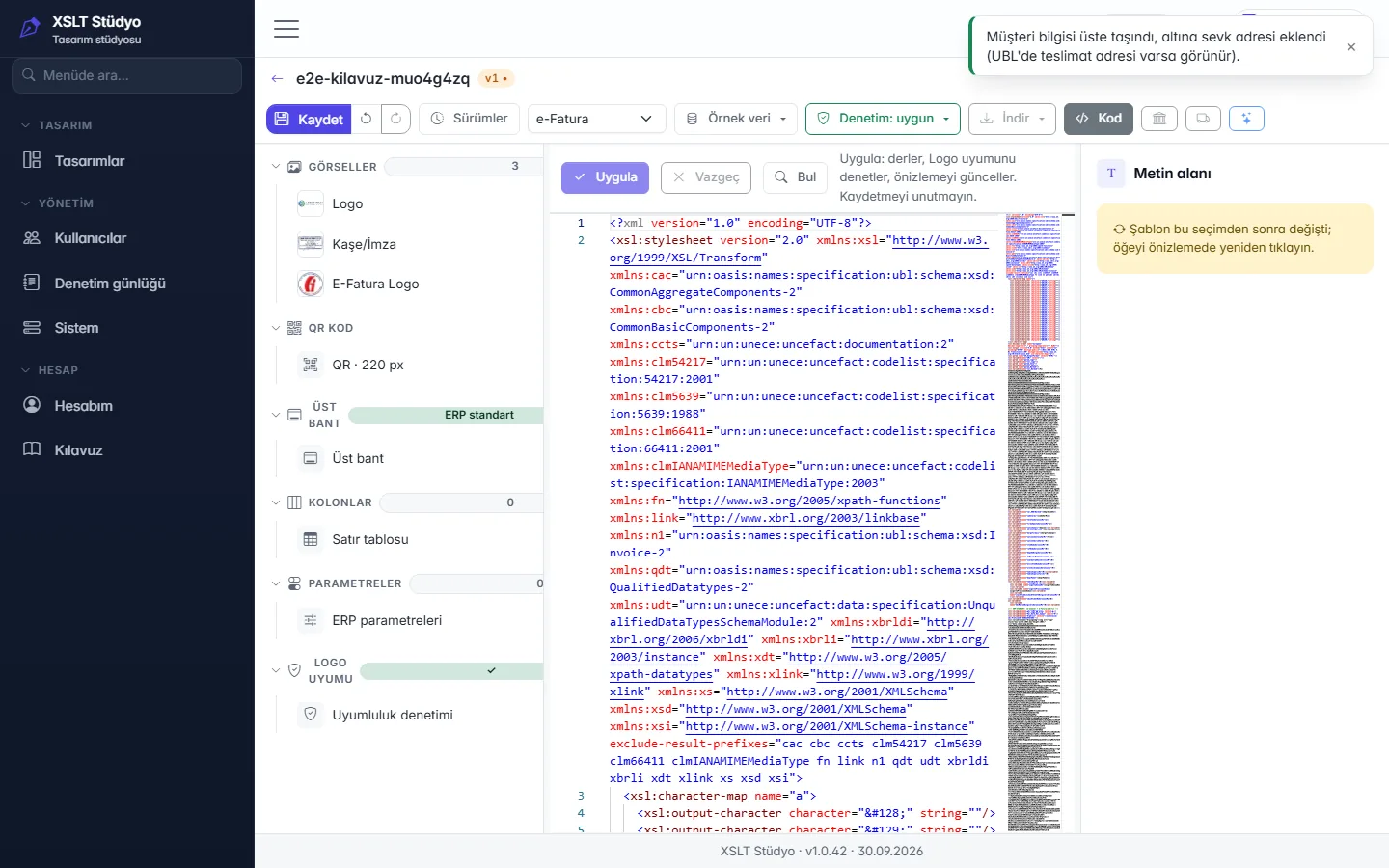
The Code button opens the XSLT in the Monaco editor. Apply compiles the code, checks Logo compatibility and refreshes the preview; use Save to save it. Discard throws the changes away.
16) Administration


Visible to the Administrator role only.
- Users: add / edit / deactivate, role (Administrator · Designer), temporary password generation (the user changes it on first sign-in). Administrators cannot reset their own password here; they use My account instead.
- Audit log: sign-in, password, design and administration events; filtered with date range chips.
- System: version, health, XSLT engine, IE check worker, licence and demo cards. When demo is enabled a real administrator can rebuild the demo data with Reset demo.
17) My account and licence card

Language and theme preference, password change. The password must be at least 10 characters and contain letters and digits.

The Licence card shows the plan, customer, start/end dates and the days remaining; the badge turns to a warning when 30 days or fewer are left. User seats, the design download allowance (unlimited or remaining balance), your downloads this month and installation-wide downloads are shown here too.
On Customer accounts the card also shows Credits: N left and the nearest expiry date; the My credits section below the cards holds two tables: Credit movements (top-ups, usage, expiry, refunds; filter by type and date) and Unlocked designs (which design, which tax ID / national ID, when it was unlocked and when the free-edit period ends). Internal users do not see this section.
19) Email Request — customer change email
Drop the email in which the customer asks for design changes (.eml or Outlook .msg) on the Designs list or on the
Email Request page in the menu (or choose the file). If dragging straight from Outlook does not work in your browser,
drag the email to your desktop first and drop it from there.
- Attachments are scanned: XSLT attachments and designs embedded in UBL/ZIP become designs, UBL invoices become the preview document. With several designs you are asked which ones to fix (attachments are preselected); with several documents you choose the preview document. If the email has no design, you apply the plan to one of your saved designs.
- The email body is split into request items (numbered lines; greeting, signature and quoted history are dropped) and each item is matched to a known fix: remove empty filler rows, move bank details into the standard table, move the company logo to the top left, move the QR code to the top right, customer details up + delivery address, notes to the left of the totals, frame around the totals, header spacing, label language (English / Turkish / bilingual), Logo compliance fix.
- Add / reorder / remove bank accounts: items such as “move Garanti to the bottom”, “add at the top — Bank name: …, IBAN: …” or “remove bank X” are applied to your own bank table in the template: rows are moved and a new account is added in the style of the existing rows (font, capitals, IBAN grouping); the table is not converted to the standard table. Fields not given in the email (e.g. branch, currency) stay empty. An IBAN that is already listed is not added again.
- Apply runs the ticked actions of the Plan table on every design; each design shows its result in its own column (green done, amber warning — e.g. a placeholder bank table when no account is found —, red not applied with the reason). Apply always starts from the original in the email; Undo restores the originals (asks for confirmation).
- An unmatched item stays To be done manually: select it to assign an action in the strip below, or mark it Fixed manually (with an optional note) once you have fixed it yourself.
- The Preview tab renders the selected design with the email's document; Corrected / Original compares before and after.
- Fix in studio opens the selected design in the studio (a design is created); the version you save there comes back into the plan as a manual fix via Back to the email request in the command bar.
- Download selected gives one XSLT, Download all gives
<subject> - düzeltildi.zip. File names are versioned:20250101_Acme_efatura.xslt→20261013_Acme_efatura_V1.xslt(a leading date becomes today; every download is a new version).


20) Creating an account and verifying your email
If you see Don't have an account? Sign up on the sign-in screen, you can open your own account. If the link is missing,
sign-up is currently closed: /kayit then says “Sign-up is currently closed” and gives the sales team's email address.

- Fill in the form. Your email address (at most 64 characters; it becomes your sign-in name), your full name and a password (at least 10 characters, with letters and digits; typed twice) are required. Billing details (company name, tax/ID number) are optional; if you enter a tax number its check digit is validated. You must confirm that you have read the privacy notice (KVKK) (open it from the link) before an account is created. Disposable email addresses are not accepted.
- Press Create account. The “Check your inbox” screen appears and shows only the first letter of your address
(
a•••@example.com). The screen is the same even if you had signed up with that address before, so it never reveals whether an account exists. - Open the link in the email and press Verify my account. Opening the link alone does not verify the account; you must press the button. From the “Your account is verified” screen go to Sign in.
- Sign in with your email address and password. The account is created with the Customer role and 0 credits: you can design, preview and save; downloading a design needs credits (see 14). To get credits contact the sales team (My account → licence card and the link in the “You have no credits left” dialog).


If the email does not arrive
- Look in your spam folder as well as the inbox and check that the address was typed correctly.
- On the “Check your inbox” or “Invalid link” screen press Request a new link and enter your email address; a new verification link is sent (it replaces the previous one; the old link stops working). The same address cannot be asked too many times in a short period: wait a little and try again.
- If you try to sign in before verifying, the sign-in screen may say “Your account is disabled”; this means the account is not verified yet. Use the link in your email first, or request a new link.
- Still nothing? Write to the sales team; an administrator can verify your account manually.
Time limits
- The verification link is valid for 7 days and can be used once.
- An account that is not verified within 7 days is deleted; you can simply sign up again.
- A verified account starts with 0 credits; credits are loaded separately.
23) Bulk Extract XSLT
To take the designs out of a customer's invoice/despatch samples without opening them one by one, drop the files on the Extract XSLT page in the menu (or choose them; several files can be selected at once):
- Customer email (
.eml/.msg): attached ZIPs and XMLs are scanned. A UBL ZIP, an integrator package (EDM bulk download: one inner ZIP per document) and a UBL XML can also be dropped directly. - The embedded XSLT of each document (or the
.xsl/.xsltfile in the ZIP when nothing is embedded) is listed. The name is the file name without the document number:TEZ_MARIN_EFATURA_TZB2026000000016.zip→TEZ_MARIN_EFATURA.xslt. The number is found even when a stray underscore slipped into it (TEZ_SIGORTA_EARSIVS_AV2025000000001→TEZ_SIGORTA_EARSIV). If the same name appears twice, the second one gets(2). - The list shows the design name, document number, uploaded file and size (search, grouping, Excel/PDF). The row's download
button gives a single
.xslt; Download All downloads all of them asXSLT'ler - yyyyMMdd.zip. Files are downloaded as they are (encoding and content unchanged — open the design in the studio for the Logo compliance fix). - Sources without an XSLT, or that cannot be read, are listed with the reason in the skipped box. Uploaded files are not stored; the list is cleared when you leave the page.
Desktop counterpart: XSLT_Edit File → XSLT'leri Toplu Çıkar… (same naming; writes to the chosen folder and never overwrites an existing file).